How to Update Game Vault 777: Latest Version 2026 + 5 Fixes If Update Fails
Updated April 2026 · Works on Android, iPhone & PC · Verified by GameVault777.vip
If your Game Vault 777 app is crashing, freezing, or showing a “please update” message — you’re in the right place. Running an outdated version is one of the most common reasons players run into problems, and updating takes less than three minutes once you know the right steps.
This guide walks you through how to update Game Vault 777 on Android, iPhone, and PC, how to check which version you’re on, and exactly what to do if the update fails or causes new problems. Current latest version: v2.0.58 — 2026
Table of Contents
Why You Should Always Run the Latest Version
Game Vault 777 releases regular updates throughout the year. Each update typically includes:
- New games and game modes — fresh fish tables, slot titles, and arcade games are added with each major update
- Bug fixes and stability improvements — older versions often have crashes, freezing, or login issues that are resolved in newer builds
- Performance upgrades — faster load times, smoother animations, better touch response
- Security patches — keeping your account and personal information protected
- Bonus and promotion compatibility — some bonuses and promo codes only work on the latest version
If you’re on an old version and experiencing problems, check out the Game Vault 777 not working guide first — your issue may already be fixed in the latest release.
How to Check Your Current Game Vault 777 Version
Before updating, confirm which version you’re running. Here’s how on each device:
On Android:
- Open the Game Vault 777 app
- Tap the Menu icon (☰) in the top-left corner
- Tap Settings
- Scroll down to About or App Info — your version number is displayed here
On iPhone (iOS):
- Open the App Store on your iPhone
- Tap your profile icon (top-right)
- Scroll down to find Game Vault 777 in your purchased apps
- The version number is shown under the app name
On PC:
- Open the Game Vault 777 desktop client
- Look for a version number in the bottom corner of the login screen, or check Settings → About
If your version number is lower than v2.0.58, you’re running an outdated build and should update immediately.
💡 Pro Tip: The game will often show a pop-up notification saying “A new version is available — please update to continue.” If you see this message, don’t dismiss it. Follow the steps below to update right away — ignoring it can result in being locked out of the app entirely.
How to Update Game Vault 777 on Android (Step-by-Step)
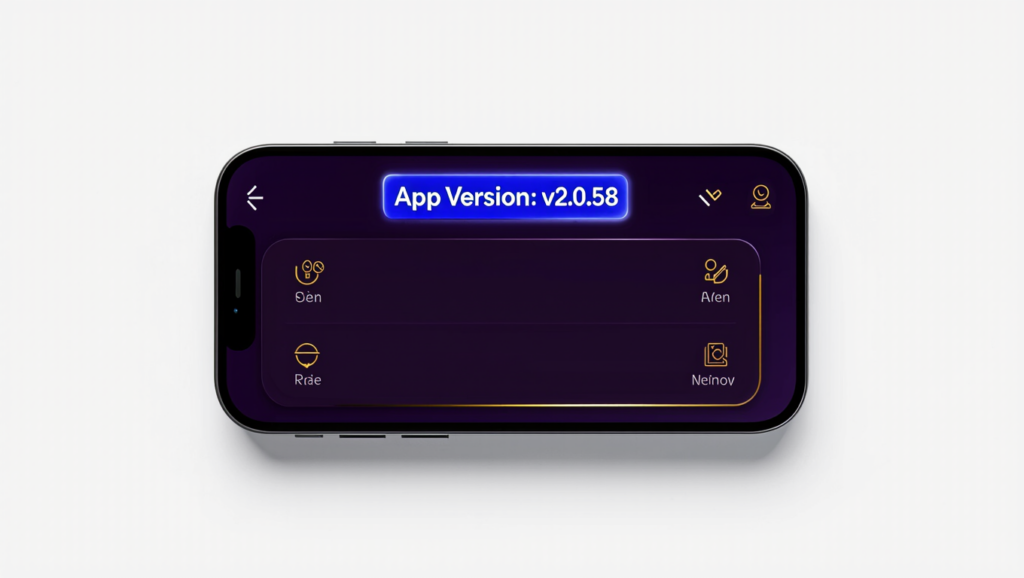
Game Vault 777 on Android is distributed as an APK file — it does not auto-update like standard Play Store apps. You need to manually download and install the new version each time. Here’s exactly how:
Step 1 — Enable “Install from Unknown Sources”
Go to Settings → Security (or Privacy on some phones) → enable “Install Unknown Apps” or “Allow from this source.” This only needs to be done once — you can disable it again after the update.
Step 2 — Download the Latest APK
Visit the official Game Vault 777 download page and tap the Android download button. Always download from the official site — third-party APK sites can contain modified or unsafe versions of the app.
Step 3 — Install Over the Existing App
Once the APK downloads, open your Downloads folder and tap the file. You’ll see an install prompt — tap “Update” or “Install.” You do not need to uninstall the old version first in most cases; the new APK installs on top and preserves your account data.
Step 4 — Open the App and Log In
Once installation is complete, open Game Vault 777 and log in with your existing credentials. Your balance, game history, and settings should carry over automatically. If you see any issues logging in, contact your agent.
⚠️ Important: Never install Game Vault 777 APK files downloaded from unofficial YouTube links, random Telegram channels, or unverified websites. Fake APKs can steal your login credentials or infect your device. The only safe source is the official download page at GameVault777.vip.
How to Update Game Vault 777 on iPhone / iOS
Updating on iPhone is simpler — Game Vault 777 is available through the Apple App Store, so iOS updates are handled through the standard process:
- Open the App Store on your iPhone or iPad
- Tap your profile picture in the top-right corner
- Scroll down to the “Available Updates” section
- Find Game Vault 777 and tap the “Update” button next to it
- Wait for the download to complete — the update installs automatically
- Open the app and log in as normal
You can also enable automatic updates for Game Vault 777 so you’re never running an old version: go to Settings → App Store → App Updates and toggle it on.
💡 Tip for iPad users: The update process is identical on iPad. If you play on both iPhone and iPad, update both devices at the same time to keep your experience consistent.
How to Update Game Vault 777 on PC (Windows)
On Windows PC, Game Vault 777 is typically run through an Android emulator (like BlueStacks or LDPlayer) or through a dedicated PC client. Either way, updating is straightforward:
Via Android Emulator (BlueStacks / LDPlayer):
- Download the latest Game Vault 777 APK from the official download page
- Drag and drop the APK file directly into your open emulator window
- The emulator will automatically detect and install the update
- Restart the emulator if prompted, then open Game Vault 777
Via PC Client:
- Visit the Game Vault 777 PC download guide for the latest Windows installer
- Download and run the new installer — it will overwrite the old version automatically
- Open the app and log in normally
5 Common Update Problems — and How to Fix Each One
If the update isn’t going smoothly, one of these five issues is almost certainly the cause. Work through each fix in order:
| Problem | Fix |
|---|---|
| “App Not Installed” error | Free up storage space (the update needs at least 200MB free), uninstall the old version completely, reboot your phone, then install the new APK fresh. Your account data is stored on the server — uninstalling won’t delete your balance. |
| “Parse Error” during install | Your APK download was corrupted — this usually happens on a weak Wi-Fi connection. Delete the downloaded file, switch to a strong Wi-Fi network, and re-download from the official site. |
| Black screen after updating | Force-stop the app (Settings → Apps → Game Vault 777 → Force Stop), then clear the cache (Settings → Apps → Game Vault 777 → Storage → Clear Cache). Reopen the app. Also update Android System WebView from the Play Store — an outdated WebView is a common cause of black screens. |
| Update stuck at 90–99% | Wait an extra 2–3 minutes — large updates can appear frozen near the end. If it’s truly stuck, cancel the install, reboot your device, and try again. Make sure you have at least 500MB free storage before retrying. |
| App crashes immediately after update | Clear both the app cache and app data (Settings → Apps → Game Vault 777 → Storage → Clear All Data), then reopen. You’ll need to log in again. If the problem continues, uninstall and do a completely fresh install from the official download page. |
Still having issues after trying all five fixes? Visit the full Game Vault 777 not working troubleshooting guide for more in-depth solutions, or contact your agent directly for account-specific help.
💡 Pro Tip: After any update, it’s a good habit to check your credit balance and run one quick game to make sure everything transferred correctly. If your balance looks wrong, a simple force-close and reopen of the app usually refreshes it. Still wrong after that? Contact your agent immediately — never wait days to flag a balance issue.
Frequently Asked Questions — Game Vault 777 Updates
Will updating Game Vault 777 delete my account or balance?
No. Your account, balance, and game history are stored on Game Vault 777’s servers — not locally on your device. Updating (or even uninstalling and reinstalling) will not affect your credits. Just log in with your usual credentials after the update and everything will be there.
How often does Game Vault 777 release new updates?
Game Vault 777 typically releases updates every few weeks, with major feature updates (new games, UI improvements) happening a few times per year. The best way to stay current is to check the official download page periodically, or ask your agent — they’ll usually notify you when a major update drops.
Can I go back to an older version of Game Vault 777?
Technically yes — old APK versions can be installed on Android. However, this is not recommended. Older versions may have security vulnerabilities, won’t receive new games or bonuses, and in some cases the server will block connections from significantly outdated builds. Always run the latest version when possible.
Why is Game Vault 777 asking me to update before I can play?
When the platform releases a mandatory update, the app locks out players on older builds until they update. This is a security and compatibility measure — the old version’s code is no longer compatible with the current server. Follow the Android or iOS update steps above to get back in within minutes.
Is it safe to update Game Vault 777 from the Google Play Store?
Yes — the Google Play Store version is the safest way to update on Android since Google scans all apps for malware. You can also update safely from the official site at GameVault777.vip. Avoid APK files from unofficial sources, YouTube comments, or random Telegram links.
Final Thoughts
Keeping Game Vault 777 updated is one of the simplest things you can do to protect your account and get the best playing experience. A three-minute update can fix crashes, unlock new games, and ensure your promo codes work correctly.
If you haven’t updated in a while, do it now — download the latest version from the official Game Vault 777 download page and follow the steps above. New player? Sign up through a verified agent and get started on the latest version from day one.